CAS user
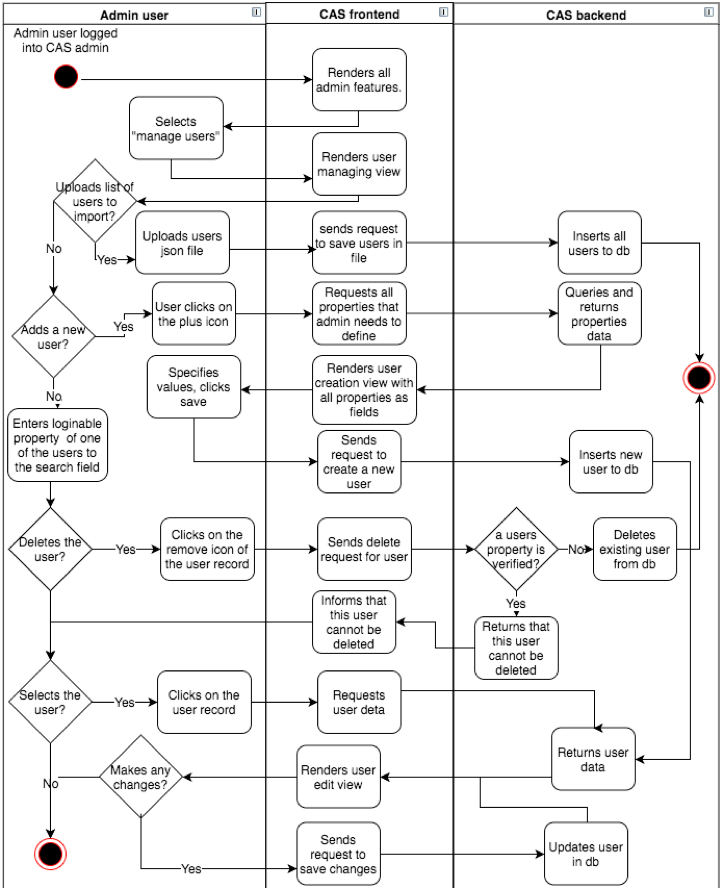
The user is a person who logs into a CAS OAuth2 client web-system using CAS for authentication. In order for the login to be successful the person needs to be registered as a user in the CAS database. In CAS, users can register by themselves or be registered by another user with an admin role. Image 6 describes how admin manages users and image 7 shows how users register themselves.
The diagram here shows that managing CAS users can be done by admin users. There are four types of changes that admin can do with CAS users:
- Import json list of existing users – Used for migrating other web-system users into the CAS database.
- Delete existing CAS users – The admin user can delete existing CAS users only when the user has no validated properties.
- Add new CAS user – The admin user can add a new CAS user. In order to create a new user, admin has to specify at least all required properties.
- Edit existing user – The admin user can edit all existing CAS user properties, except for those which are unique.
4.3.1 User registration
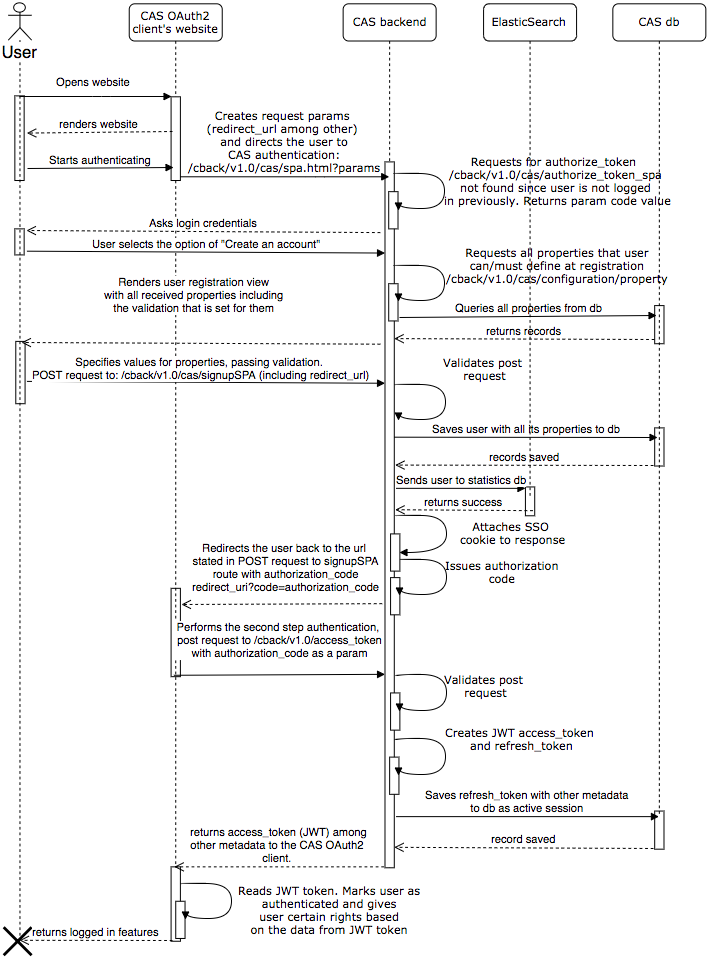
The person who wishes to log into a website must first enter the site and click login. The website directs the user to the CAS authentication page with specified GET parameters:
client_id, same as registeredredirect_uri, same as registered - “https://eid.eregistrations.org/dashboard”response_type, must be "code" herestate- mandatory unique identifier of the current request, this will be returned at the end to client, and client is strongly suggested to verify that the state is same as was originally issued by clientscope- optional descriptive parameterlang- optional language parameter.
https://eid.eregistrations.org/cback/v1.0/cas/spa.html#/?response_type=code&client_id=cas-client&state=Dajo7fIRHoCw6YI&scope=any&redirect_uri=https%3A%2F%2Feid.eregistrations.org%2Fdashboard&lang=en
When rendering the CAS login view, CAS sends a request to the endpoint /cback/v1.0/cas/authorize_token_spa to determine whether the user already has an active session using the SSO cookie cas_token. Since in this scenario the user does not currently have an active session, the endpoint returns a unique code that CAS uses for following requests. As the person does not have a user account, he/she elects to create one.
To render the user registration view, CAS makes a GET request to a backend endpoint which provides all properties with their rules and renders them in the view. The user then specifies the values for all the required properties and registers his/her account. For this event CAS sends a POST request to /cback/v1.0/cas/signupSPA containing all properties that the user specified and also the value of redirect_uri which CAS received from the initial spa.html request.
When /cback/v1.0/cas/signupSPA receives a request it validates it and stores the new user and its properties in the CAS PostgreSQL database. It also sends user data to ElasticSearch for statistical purposes. Then CAS adds a single-sign-on (SSO) cookie named cas_token to the response along with the authorization code. CAS directs the user back to the redirect_uri value where it adds the authentication code:
https://eid.eregistrations.org/dashboard?code=cas-client8lxKhn1zovnbnalGOJRTaI3FX&state=Dajo7fIRHoCw6YI
The site where the user is directed needs to perform the second step authentication by making a POST request to :
https://eid.eregistrations.org/cback/v1.0/access_token
With following properties:
grant_type, must be the authorization_codegrant_type, must be the same value as the one received from the code parameter “cas-client8lxKhn1zovnbnalGOJRTaI3FX”redirect_uri, must be the same as the one registered “https://eid.eregistrations.org/dashboard”
When /cback/v1.0/access_token receives a request, it validates it and creates a refresh_token and an encoded JWT access_token using a private key to sign it. It saves the refresh_token along with other metadata in the database and sends a response to the OAuth2 client.
https://eid.eregistrations.org/cback/v1.0/access_token
response:
{
 "access_token": "eyJhbGciOiJSUzUxMiIsInR5cCI6IkpXVCJ9.eyJwcm9wZXJ0aWVzIjpbeyJrZXkiOiJEVUkiLCJ2YWx1ZSI6IjQ0NDQ0NDQ0LTAifSx7ImtleSI6Ik5JVCIsInZhbHVlIjoiMTIxMi0xMzEyMTItMTIxLTAifSx7ImtleSI6InByaW1hcnlfZW1haWwiLCJ2YWx1ZSI6InJhdW5vMTk5MUBob3QuZWUifV0sInJvbGVzIjpbImNpdWRhZGFubyJdLCJzdWIiOjEzNTU2LCJ1c2VyX25hbWUiOiItLS1yYXVub2t1bGxhLS0tIiwibG5hbWUiOiJLdWxsYSIsImZuYW1lIjoiUmF1bm8iLCJpc3MiOiJ1bmN0YWQuand0IiwianRpIjoiODMwYWM3YjgtNTMxNC00MzgzLWI5YzAtMGY0ZDdmZDE5OWNhIiwidG9rZW5faWQiOjE1MjkyNTgyNzAyMDYsImV4cCI6MTUyOTI2MTg3MCwiaWF0IjoxNTI5MjU4MjcwLCJlbWFpbCI6InJhdW5vMTk5MUBob3QuZWUiLCJsYW5nIjpudWxsLCJlbWFpbF92ZXJpZmllZCI6ZmFsc2UsInVzZXJfdmVyaWZpZWQiOmZhbHNlfQ.c25mqcL4SQUr32A8RsNWEX0dGapwmdlExNr8nsXlWTPZnPFl_BtKQwOBj8dI6faZc8cTl2mGEFEfDwjdIZC310-mfl4GgZyI0fPoZAI0-57u4OkmJxmscqWqabv-j6zrGG8Cc6SNFV1upEpIAslx0yJ3rvBc1BrfK1nhBV8GpQiP85Xy7eqBdX6LTQgCThg2yJY07os8fBFhFZ5mgy6lX_xlldUVjPvtmOOEbIMebE6YsOPSZwwUiehjM1eXbron7-m0l4o6TRy-0HA408nztcB9QHPjtrX8vkidVObUTTCRkFCEjUNcpaxMQTEDSBM6QvGtUaf_RH_thKCKKPCTTQ",
 "token_type": "Bearer",
 "messages": [
   {
     "severity": 0,
     "message": "Verification message was sent to rauno1991@hot.ee"
   }
 ],
 "expires_in": "1529261870",
 "password_expires": "2018-09-25T17:47:49.372Z",
 "last_successful_login": "null",
 "email_verified": false,
 "refresh_token": "b27ecb40d6de9b137b995678a9d98b18861316b1ac099e7dcf9ad61783010d6cdd7ad9f381229efb"
}
Decoded example of access_token:
{
  "properties": [
    {
      "key": "DUI",
      "value": "44444444-0"
    },
    {
      "key": "NIT",
      "value": "1212-131212-121-0"
    },
    {
      "key": "primary_email",
      "value": "rauno1991@hot.ee"
    }
  ],
  "roles": [
    "ciudadano"
  ],
  "sub": 13556,
  "user_name": "---raunokulla---",
  "lname": "Kulla",
  "fname": "Rauno",
  "iss": "unctad.jwt",
  "jti": "830ac7b8-5314-4383-b9c0-0f4d7fd199ca",
  "token_id": 1529258270206,
  "exp": 1529261870,
  "iat": 1529258270,
  "email": "rauno1991@hot.ee",
  "lang": null,
  "email_verified": false,
  "user_verified": false
}
The CAS OAuth2 client then verifies the validity of the signature on the JWT access token using a CAS public key and decodes the access_token, gets user data from it and gives the user logged in content. How a OAuth2 client obtains CAS public key is explained in image 2 - request CAS public key sequence diagram.
4.3.2 Existing user authentication
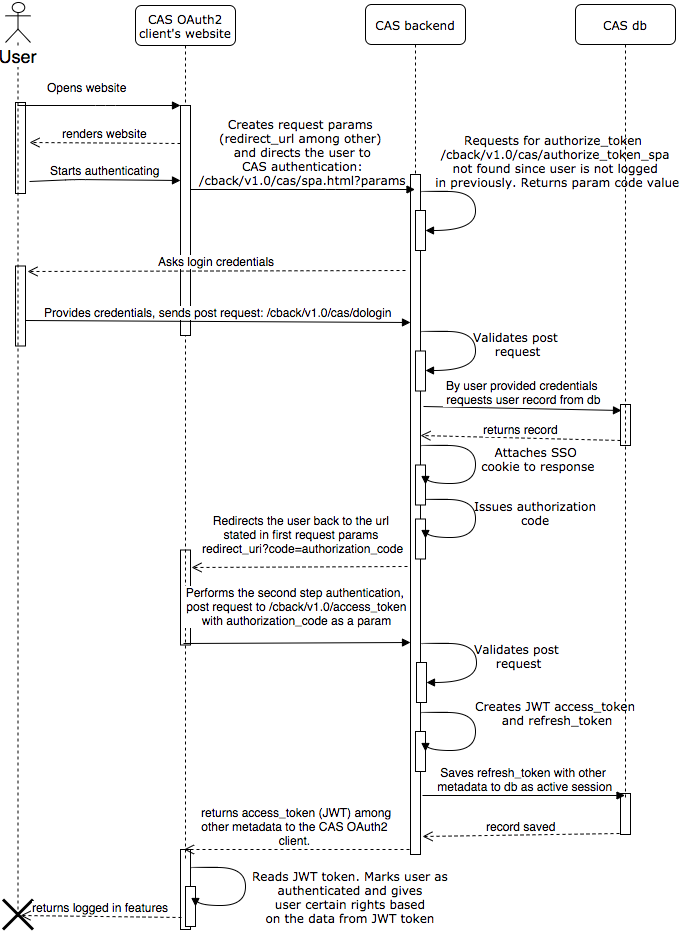
The person who wishes to log into a website first enters the site and clicks login. The website directs the user to the CAS authentication page with specified GET parameters:
client_id, same as registeredredirect_uri, same as registered - “https://eid.eregistrations.org/dashboard”response_type, must be "code" herestate- mandatory unique identifier of the current request. Will be returned at the end to the client who is strongly advised to verify that thestateis the same as the one originally issued by the clientscope- optional descriptive parameterlang- optional language parameter.
https://eid.eregistrations.org/cback/v1.0/cas/spa.html#/?response_type=code&client_id=cas-client&state=Dajo7fIRHoCw6YI&scope=any&redirect_uri=https%3A%2F%2Feid.eregistrations.org%2Fdashboard&lang=en
When rendering a CAS login view, CAS sends a request to the endpoint /cback/v1.0/cas/authorize_token_spa to determine whether the user already has an active session using the SSO cookie cas_token. Since in this scenario the user does not currently have an active session, the endpoint returns a unique code that the CAS sends to the dologin endpoint once the user has provided his/her login credentials and clicked “Login”. CAS sends a POST request to /cback/v1.0/cas/dologin with login credentials, the code received from the authorize_token_spa request and the value of the redirect_uri which CAS received from the initial spa.html request.
When /cback/v1.0/cas/dologin receives a request, it validates it and queries the user using credentials from the CAS database. Then CAS adds a single-sign-on (SSO) cookie called cas_token to the response along with the authorization code for the authentication. It directs the user back to the redirect_uri value where CAS adds the authentication code:
https://eid.eregistrations.org/dashboard?code=cas-client8lxKhn1zovnbnalGOJRTaI3FX&state=Dajo7fIRHoCw6YI
The site where the user is directed performs the second authentication step by making a POST request to:
https://eid.eregistrations.org/cback/v1.0/access_token
grant_type, must be the “authorization_code”code, must be the same as the value received from the code parameter “cas-client8lxKhn1zovnbnalGOJRTaI3FX”redirect_uri, must be the same as the one registered “https://eid.eregistrations.org/dashboard”
When /cback/v1.0/access_token receives this request, it validates it and creates a refresh_token and an encoded JWT access_token using private key to sign it. It saves the refresh_token along with other metadata to the database and returns them to the OAuth2 client. The CAS OAuth2 client then verifies the validity of the signature with the?? JWS access_token using a CAS public key and decodes the access_token, gets user data from it and gives the user logged in content. How OAuth2 client obtain a CAS public key is explained in image 2 - request CAS public key sequence diagram.
4.3.3 Existing user authentication using SSO cookie
In this scenario a person is logged into a CAS OAuth2 client web-system. Let’s call this OAuth2 client, client A. The person uses it and, without logging out of the system, enters another web-system which is also an OAuth2 client of CAS, client B. User authentication using the SSO cookie sequence diagram is shown on image 9.
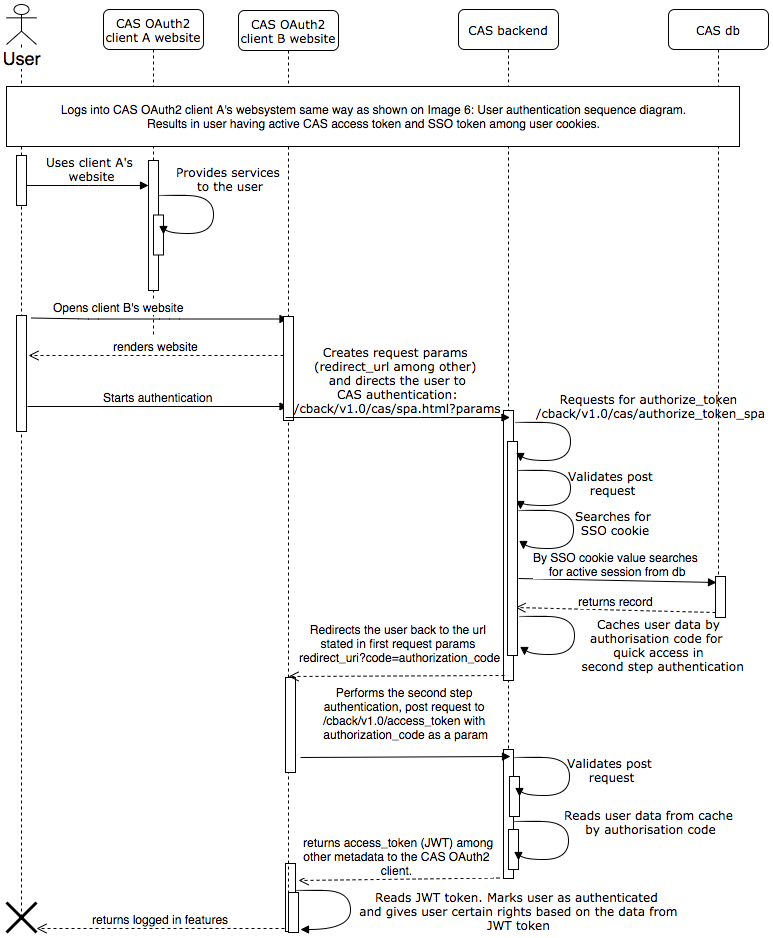
First, users authenticate themselves to client A following the sequence described in image 8. Later when they wish to access another web-system which also uses CAS for authentication, they open client B’s website and click ‘Log in’.
Now client B’s system directs the user to the CAS authentication page with specified GET parameters:
client_id, same as registeredredirect_uri, same as registered - “https://eid.eregistrations.org/dashboard”response_type, must be "code"state- mandatory unique identifier of the current request. Will be returned at the end to client who is strongly advised to verify that the state is same as the one originally issued by clientscope- optional descriptive parameterlang- optional language parameter.
https://eid.eregistrations.org/cback/v1.0/cas/spa.html#/?response_type=code&client_id=cas-client&state=Dajo7fIRHoCw6YI&scope=any&redirect_uri=https%3A%2F%2Feid.eregistrations.org%2Fdashboard&lang=en
While rendering the CAS login view, CAS sends a request to the endpoint /cback/v1.0/cas/authorize_token_spa to determine whether the user already has an active session using the SSO cookie cas_token. As the user has already signed into CAS using client A’s system, there is already a cas_token cookie and the CAS backend searches the database for a session by cookie value. Next, CAS caches the user data and returns the authorization code which will be used to access the cached data in the second step authentication. CAS then directs the user back to the redirect_uri value and adds the authentication code:
https://eid.eregistrations.org/dashboard?code=cas-client8lxKhn1zovnbnalGOJRTaI3FX&state=Dajo7fIRHoCw6YI
The site to which the user is redirected performs the second step authentication by making a POST request to:
https://eid.eregistrations.org/cback/v1.0/access_token
The properties are:
grant_type, must be authorization_codecode, must be the same as the value received from the code parameter “cas-client8lxKhn1zovnbnalGOJRTaI3FX”redirect_uri, must be the same as the one registered “https://eid.eregistrations.org/dashboard”
When /cback/v1.0/access_token receives this request it validates it, reads the user data from the cache and creates a JWT access_token signing it with a private key. CAS returns the access_token along with other metadata to the OAuth2 client. The CAS OAuth2 client then verifies the validity of the signature on JWT access_token using a CAS public key and decodes the access_token, gets user data from it and gives the user logged in content. How a OAuth2 client obtains a CAS public key is explained in image 2 - request CAS public key sequence diagram.
4.3.4 Extending active CAS session
When the user logs in he/she will be given an access token and a refresh token described more thoroughly in the section on user registration. The validity of the access token is short lived. The period of validity can be configured, but by default it is set to two hours. After two hours, if the user is still using a CAS OAuth2 client web-system, the system can request a new access token by the refresh token. The refresh token is valid longer. The period of validity of the refresh token can also be configured. By default, it is active for 24 hours. The process of requesting a new access token through refresh token is described in image below.
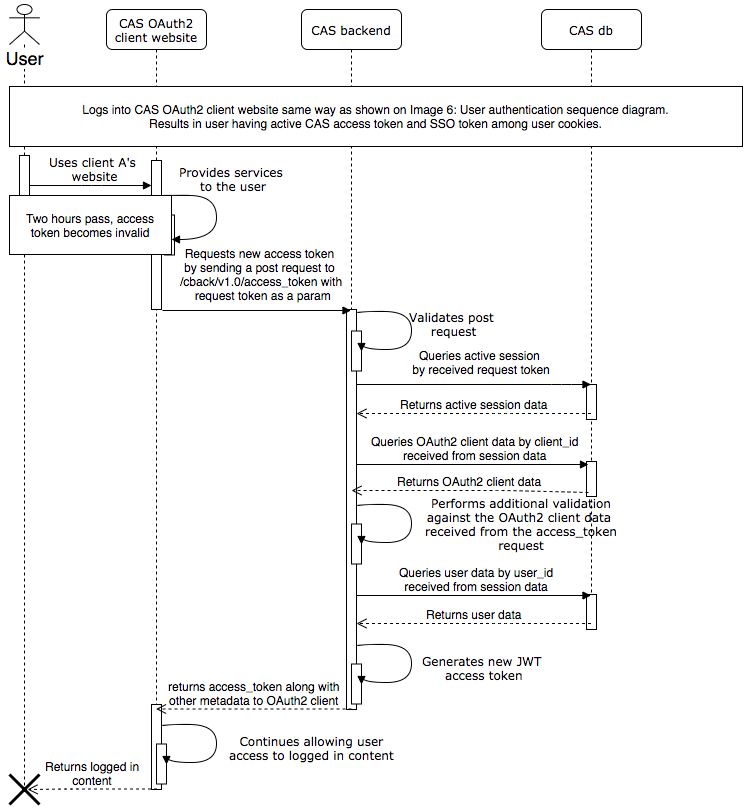
First, users must authenticate themselves to the CAS OAuth2 client web-system following the sequence described in image 8. They can then use the system for several hours until the access_token becomes invalid. If users wish to remain connected to the client’s website, the system can request a new access_token from CAS.
To receive a new access_token the client’s web-system needs to create a POST request to:
https://eid.eregistrations.org/cback/v1.0/access_token
With following properties:
grant_type, must be ‘refresh_token’refresh_token, must be the value received at login after the second step authentication: b27ecb40d6de9b137b995678a9d98b18861316b1ac099e7dcf9ad61783010d6cdd7ad9f381229efbredirect_uri, must be the same as registered “https://eid.eregistrations.org/dashboard”
First, when /cback/v1.0/access_token receives this request it validates it and queries the session data from the database using refresh_token. Second, it queries the OAuth2 client data by client_id gotten from session data and does additional validation against the access_token endpoint request parameters.
Last, the system queries the user data in the database and generates a new JWT access_token signing it with private key. CAS returns the access_token to the OAuth2 client along with other metadata. The CAS OAuth2 client then verifies the validity of the signature on the JWT access token using a CAS public key and decodes the access_token, gets user data from it and gives the user logged in content. How a OAuth2 client obtains a CAS public key is explained in in image 2 - request CAS public key sequence diagram.
4.3.5 User log out process
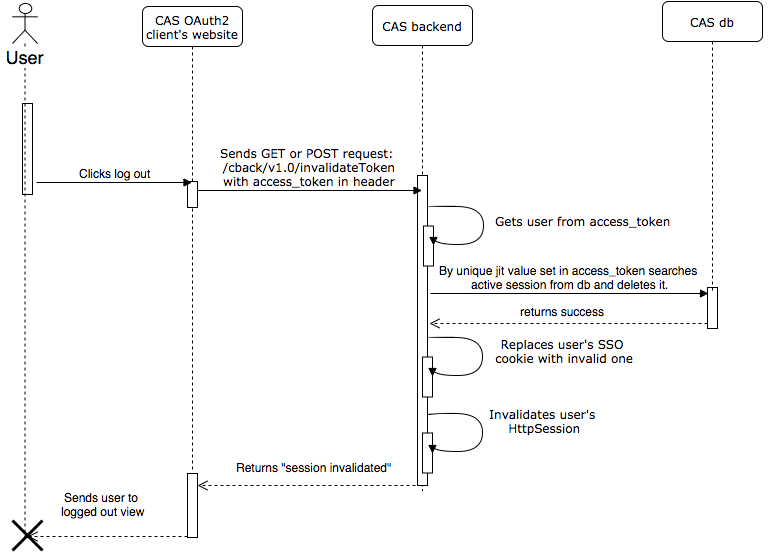
In this scenario, the process is the following: the user is logged into a CAS OAuth2 client system and therefore has an active session in the CAS database. The user then clicks the log out button on the CAS OAuth2 client system. The OAuth2 client sends a GET or POST request to the CAS route /cback/v1.0/invalidateToken with an access_token in the authorization header.
The CAS backend verifies the signature in access_token, decodes it and gets the user data from it. CAS receives a unique jit value from the access_token, searches for an active session in the database and deletes it. Additionally, it replaces the user’s active SSO cookie with an invalid one and invalidates the user’s HttpSession. The “Session invalidated” string then appears.